1544 - 4755
• hanbiro@hanbiro.com


Omnia
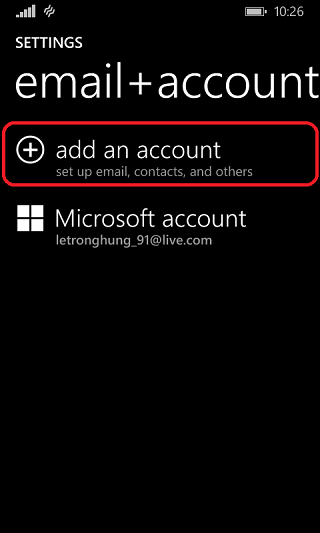
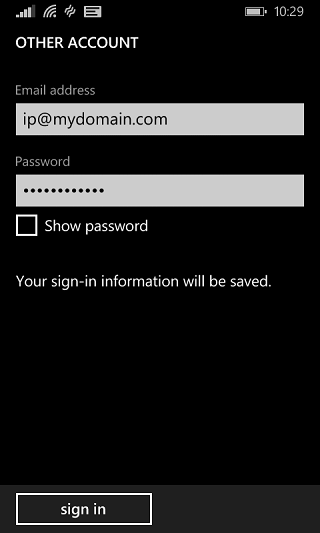
- In "SETTINGS", touch"email+account", then touch "add an account". Enter Email address and Password, then touch [sign in].
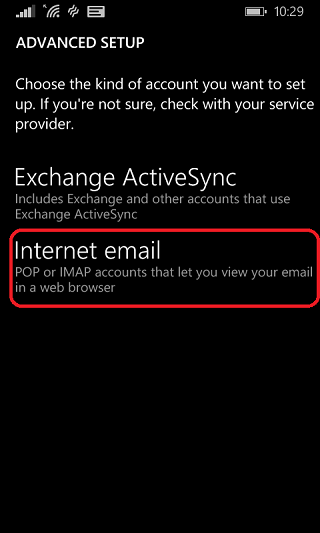
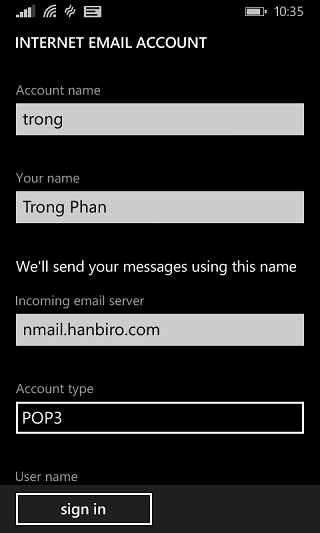
- In "ADVANCED SETUP", touch "Internet email". In "INTERNET EMAIL ACCOUNT", enter information of Account name, Your name, and Incoming email server. With "Account type", select "POP3".
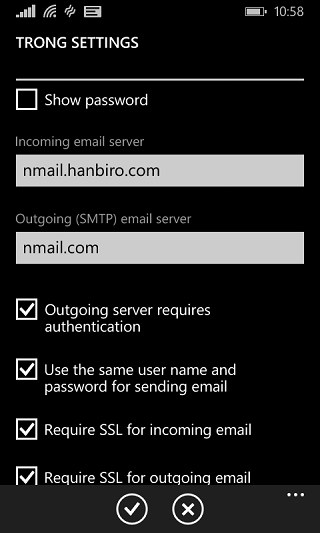
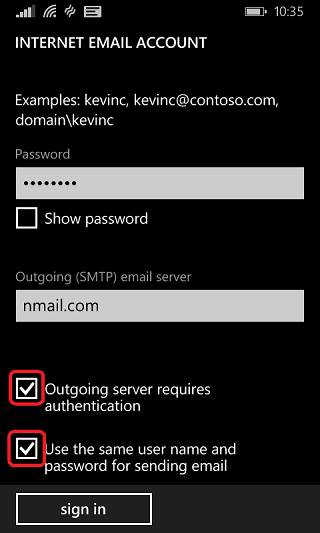
- In Outgoing (SMTP) email server, enter domain of email, and check "Outgoing server requires authentication" & "Use the same user name and password for sending email". And last touch [sign in].
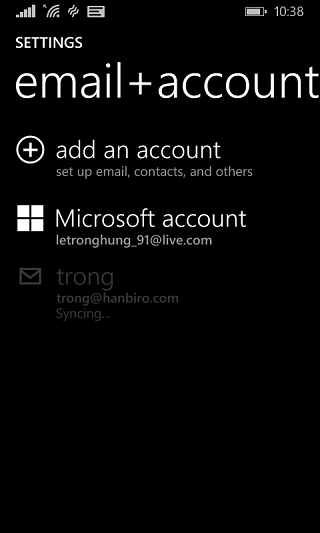
- Go back to "SETTINGS", touch your created account.
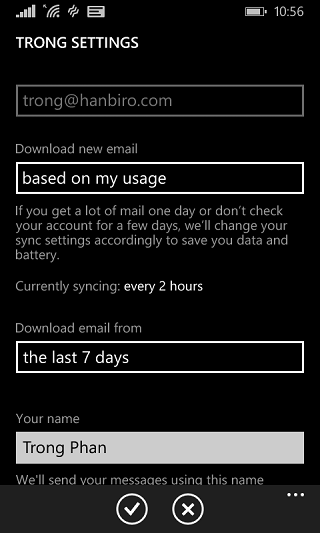
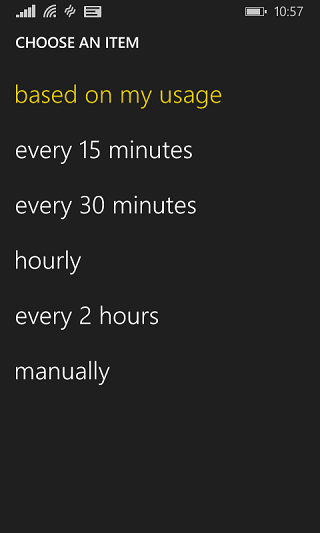
- In the mail settings, choose an item what you want from "Download new mail".
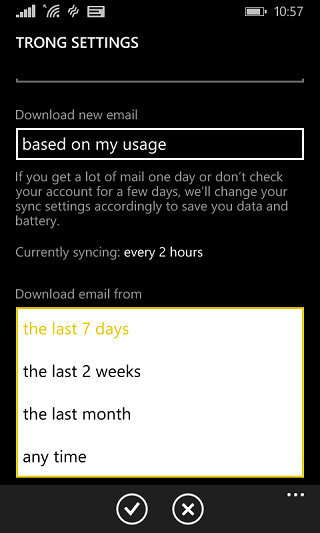
- Select the time as desired of "Download email from" to download. Tick on all boxes of Outgoing (SMTP) email server.